Schedule is your week at a glance. Every booking your assistant makes on a call shows up here on its own — you don't lift a finger.
Your week, filled in for you
Open Schedule from the menu. The title reads This week, with the dates, how many bookings it holds, and how many your assistant booked just above it. The board lays the days side by side — today's column is marked Today, with a coral line at the current time — and each block is a booking, placed on the day and time it's set for. On a phone the week is a list, one day at a time.
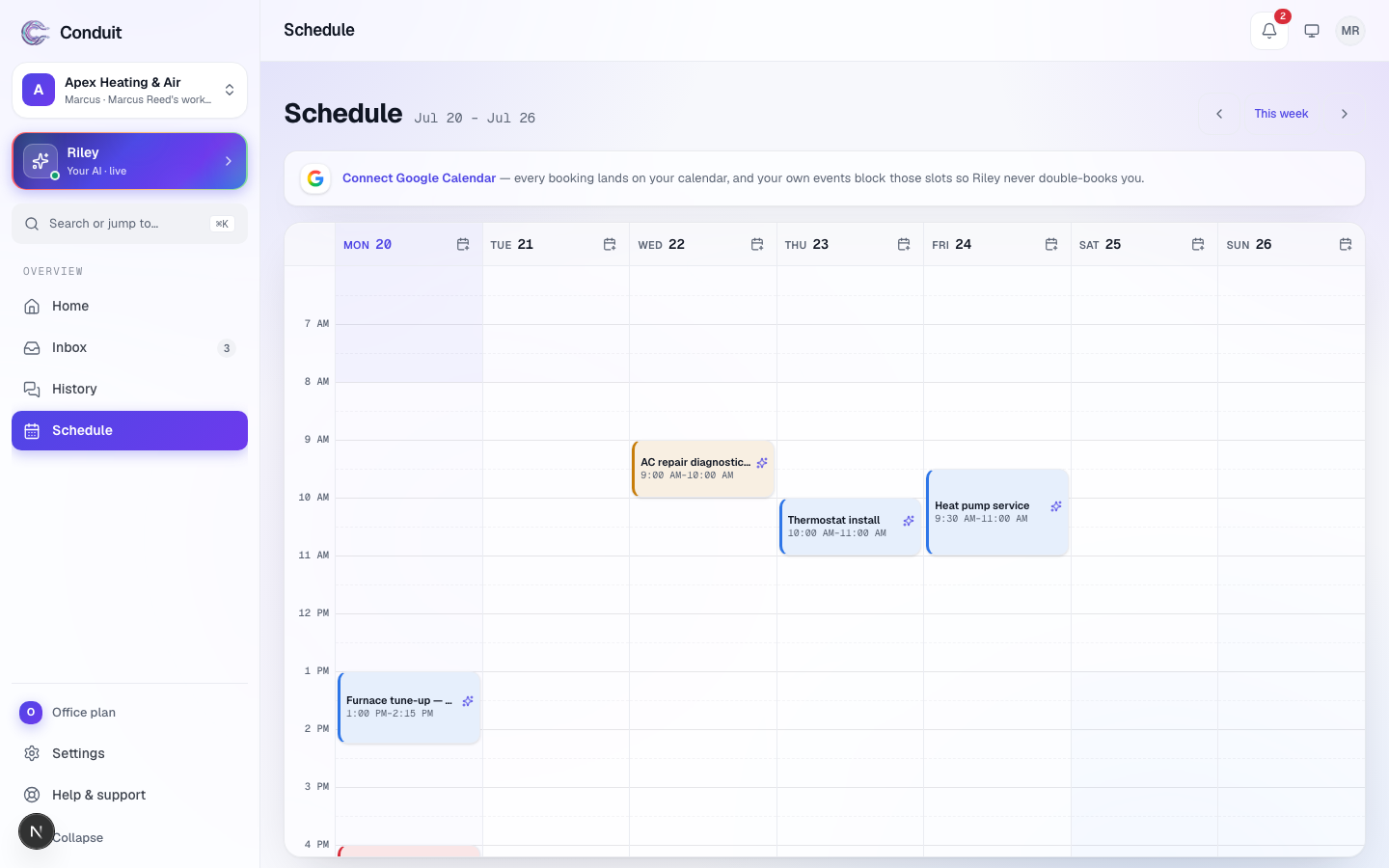
- Open a booking ① to see it beside the board: the time, its status, how long it runs, the customer, and who booked it. Update status moves it along (for example to in progress or done), Reschedule opens a new-time picker — Move it to the time you pick, or Find open times to see what's free — and Cancel booking takes it off the board.
- Move between weeks ② with the arrows either side of the week number; once you've stepped away, This week appears between them and brings you back in one tap.
New booking, beside the week stepper, adds one by hand — or click any open time in a day's column and the form opens with that time filled in. The key under the board tells apart what your assistant booked, what you booked, what's in progress or done, what isn't confirmed yet, and the closed hours; events from your own calendar show too once it's connected.
It spaces itself out
Your assistant doesn't just drop bookings anywhere. It respects the hours you're open and how many bookings you can take at once, so the board reflects a day you can actually work — not an overbooked one.
What's next
Want your assistant to see your own Google Calendar too, so it never books over something you already have? That's connecting your calendar — until you do, a Connect Google Calendar link sits just under the title.
Common questions
Do I have to add bookings myself?
No. When your assistant books on a call, the booking lands on this board automatically — spaced by the capacity and hours you set, so it never double-books you.
Can I still add or change bookings myself?
Yes. Open any booking to update its status, reschedule it, or cancel it, and add one by hand with New booking — or click any open time in a day to start one there. Your changes and your assistant's stay in sync.
Does this connect to my own calendar?
It can. If you connect Google Calendar, your assistant sees when you're already busy and keeps those times free. Google Calendar is the supported provider today.
Related
- Booking & schedulingYour assistant books work into your open slots, never double-books, and reads the booking back; callers can reschedule or cancel by phone.
- Calendar syncConnect Google Calendar so bookings appear within seconds and your own events block those slots; Google is the only provider today, not Outlook or Yahoo.
- Closures and vacation daysAdd a closure or vacation range and your assistant tells callers you're closed and when you're back, and won't book work into those days.
Stuck? Write to a person.
Email support@conduitapp.ai — a real person reads every message. No ticket bots, no phone tree.