Conduit has one job: answer your phone, book the work, and text people back — then show you what happened. This guide is a two-minute map so you always know where to look. You'll never need to understand anything technical to run it.
The menu
Down the left side: Home, Calls, Leads, Schedule, Inbox, and your assistant — that last row carries its name (it reads Assistant until you choose one). A coral count beside a row means something there is new or waiting for you. Above the rows, the location tile shows which business you're looking at. Below them sits your assistant's card, and under it Settings, Help, and Replay the tour.
On a phone, the floating bar along the bottom holds Home, Calls, Leads and Schedule, and More holds the rest: your assistant's card, your location, Inbox, your assistant, Settings, Help, and Appearance.
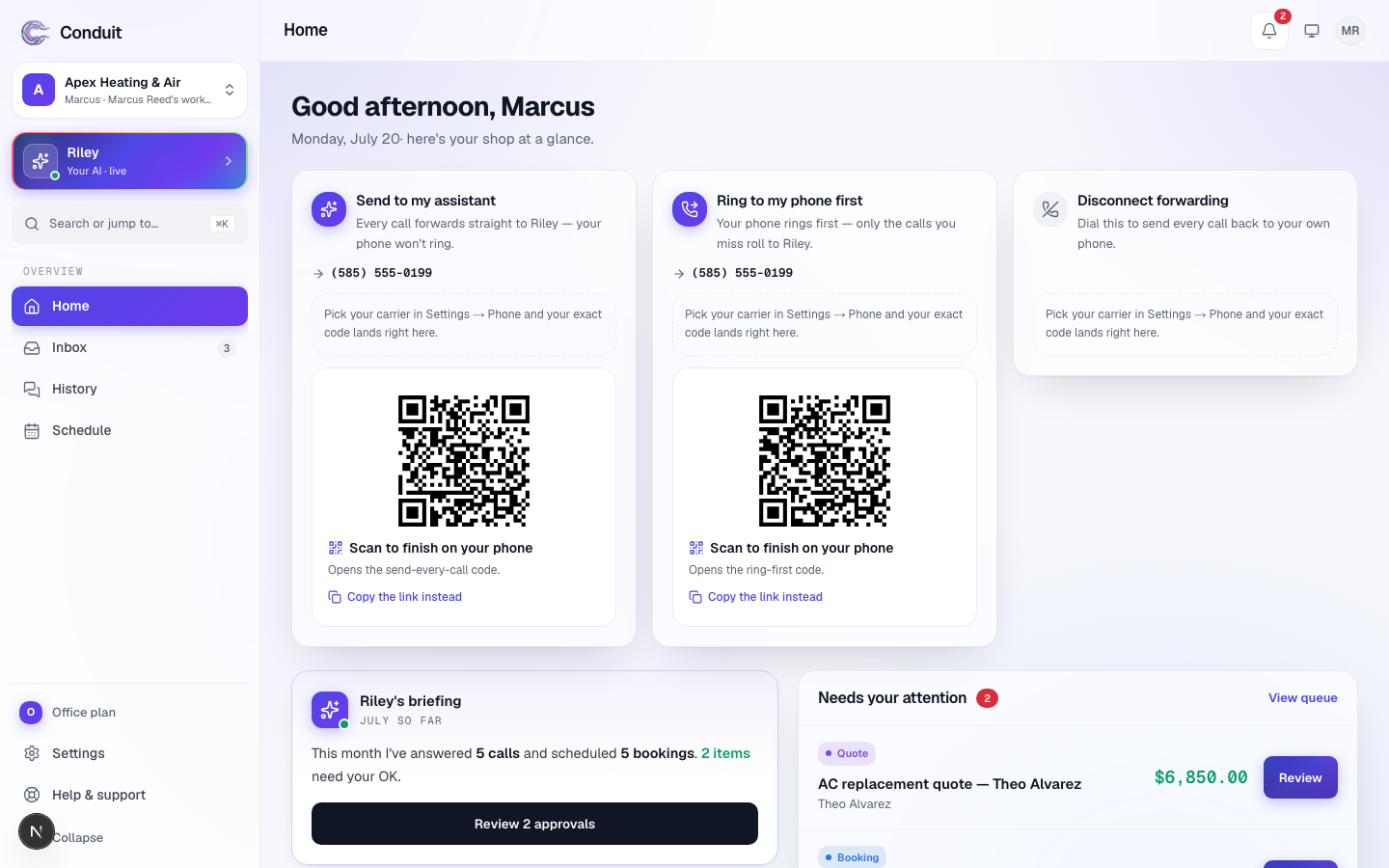
The menu ① holds the places you'll use every day:
- Calls. A record of every call and text, each with its recording, full transcript, and outcome.
- Leads. Everyone who got in touch with work, what they needed, and where it stands.
- Schedule. Your week. Every booking your assistant makes shows up here automatically.
- Inbox. Everything your assistant wrote down for you — call reports, voicemails, the morning briefing — once.
- Your assistant. Its own page: what it does, what it knows, and how it sounds. This is where you switch its duties on and off and pick its voice.
Your assistant's card ② says "Name is on the line", with its number, when calls are reaching it. Tune (it carries the name) opens its page; Test call shows the number to ring from your own phone.
The bar across the top
- Search ① (⌘K, or Ctrl-K on Windows) — the box that reads "Search calls, leads, jobs…". Type a name, a number, or a page and go straight to it. On a phone it's the magnifying-glass button.
- The bell ② — opens your Inbox. A coral dot on it means something unread.
- Your initials ③ — who's signed in, Appearance (Light, Dark, or System), Account & security, and Sign out.
Your day at a glance
Home greets you by name with one sentence about the month so far. Three things are worth knowing.
- Line status ①. The pill under the greeting. A teal Answering pill means calls are reaching your assistant right now; a coral one means they aren't yet, and links straight to the fix.
- Needs you ②. The one card worth a daily look: anything waiting on a decision from you, one at a time, with Approve and Deny right on it — and Undo on the confirmation if you change your mind. If it says you're all caught up, you are.
- Your assistant's briefing ③. A plain-English summary of the month — calls answered, appointments booked, and anything waiting for your OK.
Further down, Today lays the day's bookings along a timeline; four tiles count the month — calls answered, appointments booked, missed calls, and talk time against your plan (with texts underneath); and Recent calls lists the latest few, with All calls for the rest. While a call is in progress, a dark Live now card at the top shows who's on the line and for how long.
Settings
Settings lists thirteen places, each with a one-line hint of where it stands (Phone & texting · Forwarding on, say), in four groups: My assistant — Assistant, Capabilities, Business brain, Leads & intake, Approval rules; My business — Business, Calendar, Closures & holidays; Phone & texting; and Account & billing — Plan & usage, Notifications, Security, Workspace. On a wide screen the one you pick opens beside the list; on a phone it opens on its own, with All settings to go back.
Reading the colours
Coral means something needs you — a count, a held decision, a line that isn't connected yet. Teal means on and working — answering, booked, texting switched on. Violet is your assistant's own work — the bookings it made and its side of each conversation.
Open Home once a day and glance at Needs you. If it's empty, you're done — your assistant handled everything else on its own.
What's next
Once you know your way around, the next step is connecting your phone so real calls start reaching your assistant.
Common questions
Do I need to check Conduit every day?
No. Your assistant handles calls and texts on its own. Most owners glance at Home once a day and only step in when something is waiting under "Needs you."
Where do I change my assistant's name or voice?
Click your assistant's name in the menu (or Tune on its card near the bottom of the menu) and open the third tab, How it sounds — the tab carries its name — to pick a voice or edit the greeting. Name, personality & more on that tab opens Settings → Assistant, where the name lives. Nothing you change affects calls already in progress.
How do I switch to dark mode?
Click your initials in the top-right corner and pick Light, Dark, or System under Appearance. On a phone, it's the Appearance row at the bottom of More.
Related
- Create your account and set up your businessStep 1 of 6: sign up free and tell Conduit about your business. Five setup screens, calls live the same day — you pay only when you go live.
- Teach your assistant about your businessStep 2 of 6: review what the website scan found, add your services and the questions customers ask most — so it answers like someone who works there.
- Meet your assistant and pick a planStep 3 of 6: choose a name, voice, and personality, then pick Solo, Team, or Office and go live. You see the price before you pay.
Stuck? Write to a person.
Email support@conduitapp.ai — a real person reads every message. No ticket bots, no phone tree.