Your assistant has its own page — think of it as the assistant's dashboard. It's where you see everything it does, what it already knows about your business, and how it sounds, and where you fine-tune any of it. Open it from the menu: the row under Inbox carries your assistant's name (it reads Assistant until you choose one), or press Tune on its card near the bottom of the menu.
At the top, the orb and its name, with a pill saying whether it's answering, the one-line description of who it works for, and four counts beside it — calls answered and bookings made over the past month, duties live, and things it knows. Call (the button carries its name) shows the number to ring from your own phone — a test call uses your minutes. Hand every call to your assistant covers every call until you press I'm back — take my calls — see handing calls off for the rest of the day.
What you're looking at
The first tab does most of the work.
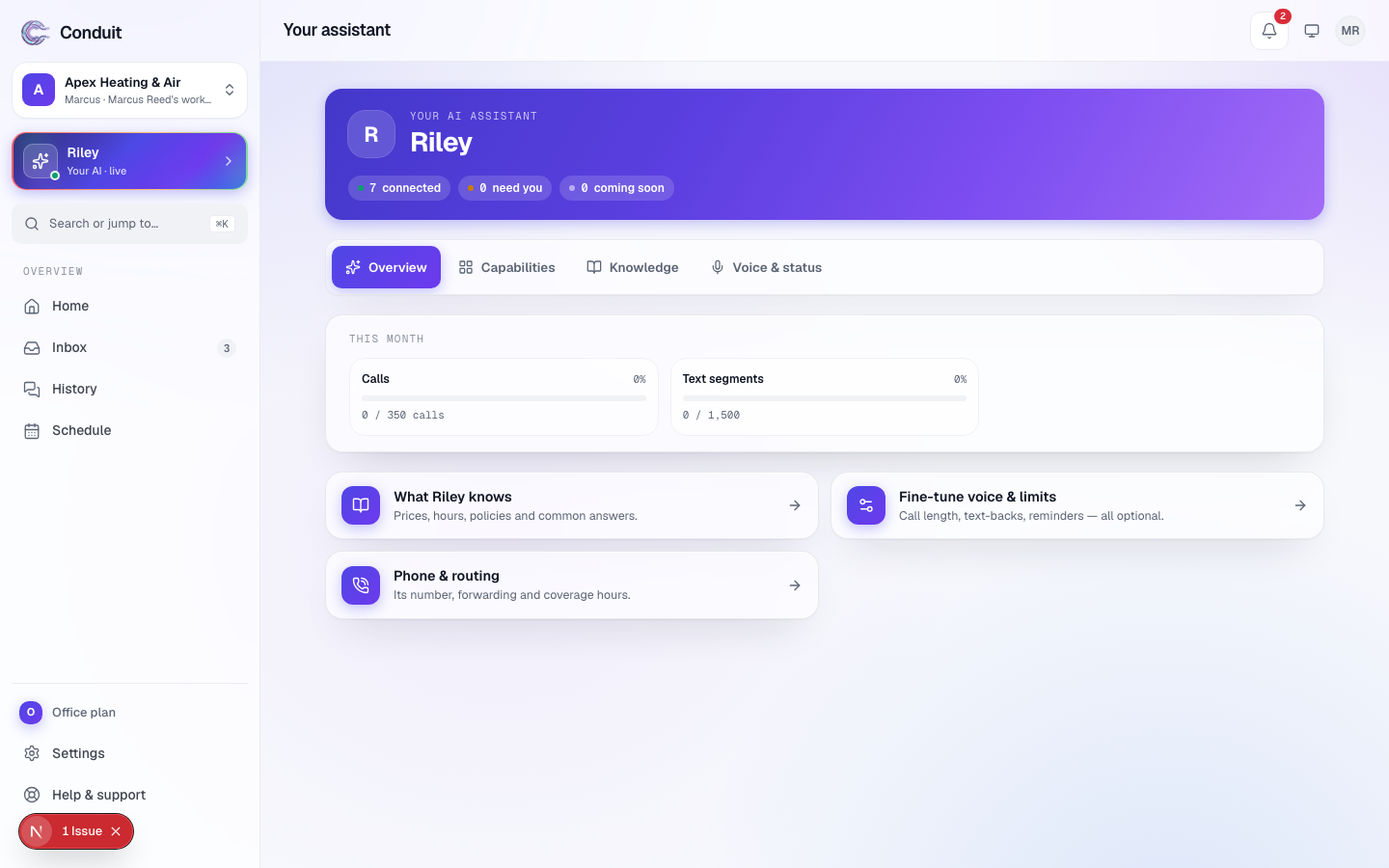
- The tabs ① — what it does, what it knows, and how it sounds, each carrying your assistant's name. Capability sheet, at the right, opens the printable one-pager of what it does and never does.
- The duty cards ② — every duty your assistant runs, each with what it did over the past month. A teal switch on the ones you can turn off here, Always on on the safety ones, On on the ones that come with your plan. Anything that still needs one small step from you carries a coral Needs you tag and names the step. Click a duty's name for the full detail: what it does, how it runs, what it connects to.
- This month ③ — your plan's allowance (call minutes and text segments used), with three shortcuts: what your assistant knows, Fine-tune voice & limits, and Phone & routing — its number and who answers when.
The tabs
On a phone the tabs read Duties, Knowledge, and Voice.
- What it does — the duty cards and the This month strip above.
- What it knows — what it knows about your business, in cards: the basics (type, service area, hours, time zone, language — Edit the basics), the services it offers, answers to common questions, your policies, emergency contacts, and time off & closures. Each card has its count and a way to add one more. The more you add here, the sharper it is.
- How it sounds — every voice in the catalog with a Sample to play — pick one and press Save changes — and What it says first: the greeting written out in full, with the opening and closing lines you can edit and the recorded-call notice locked between them. Underneath, its personality, language, duties live, and the number your callers reach.
The time you spend on What it knows pays off on every single call. A few extra answers and an accurate service list are the difference between "let me have someone call you back" and your assistant answering the question on the spot.
What's next
Curious what your assistant is actually allowed to do on its own versus what it checks with you first? See what your assistant may do alone.
Common questions
Can I rename my assistant or change its voice?
Yes. On your assistant's page, the How it sounds tab (it carries the name) lets you play and pick a voice and edit the opening and closing lines. Its name, personality, and limits like the longest single call are in Settings → Assistant — Name, personality & more on that tab, or Fine-tune voice & limits under This month, both open it. Callers on a live call aren't affected — changes apply to the next call.
How does the "Longest single call" limit work?
You pick 3 to 10 minutes (5 unless you change it) and your assistant honors it on every call. About 30 seconds before the limit it lets the caller know the call is wrapping up, finishes the matter at hand or arranges a follow-up, and says a proper goodbye — the line never just cuts. Shorter caps stretch your monthly minutes further.
Do my own test calls count against my plan?
Yes — test calls use your plan's minutes, just like a real call. They're kept out of your stats (answer rate, leads) so testing never skews your numbers, but the usage is real and your meters show it.
Can I change how my assistant sounds — its pace and warmth?
Yes. Settings → Assistant has a Voice & tone section — Pace (Unhurried / Natural / Brisk), an Extra empathy switch, and Listening sounds ("mm-hm" acknowledgments worded to match your personality preset). These change style only — the no-prices rule, escalation, and refusals are identical on every combination, and saving publishes straight to your live line.
Where can I see everything my assistant can and can't do?
Your capability sheet — "Does now", "Waiting on you" (with the one step left), and "Doesn't do — by design" (no prices by phone, no payments by voice, never identifies anyone by voice). Press Capability sheet beside the tabs on your assistant's page, or open Trust & safety (Settings → Workspace, under Your data) and press Open the sheet. It's generated from your actual setup, so it's always current, and Print / save PDF makes a clean copy to share.
What does "needs you" mean on a capability?
It's a capability that's switched on but still needs one thing from you to run at full strength — usually a connection, like linking your calendar. Its card carries a coral Needs you tag and names the single step left, as a link.
Will changing something here interrupt calls in progress?
No. Your assistant keeps answering throughout. Anything you change takes effect on the next call or text.
Related
- Your InboxYour assistant's plain-English write-up of everything it handled — calls, voicemails, and your morning briefing — a two-minute morning read.
- Your calls and textsEvery call and text your assistant handled — each with its recording, full transcript, and outcome — plus how to filter to what matters.
- Around-the-clock call answeringYour assistant answers your business number — hand it out or forward your line to it — works out what callers need, books or messages, and logs every call.
Stuck? Write to a person.
Email support@conduitapp.ai — a real person reads every message. No ticket bots, no phone tree.