Calls is the record of everything your assistant handled — every call and every text, kept in one place so you can check any of them later. You never have to be there when it happens. (It used to be called History; the address and everything in it are the same.)
Everything your assistant handled
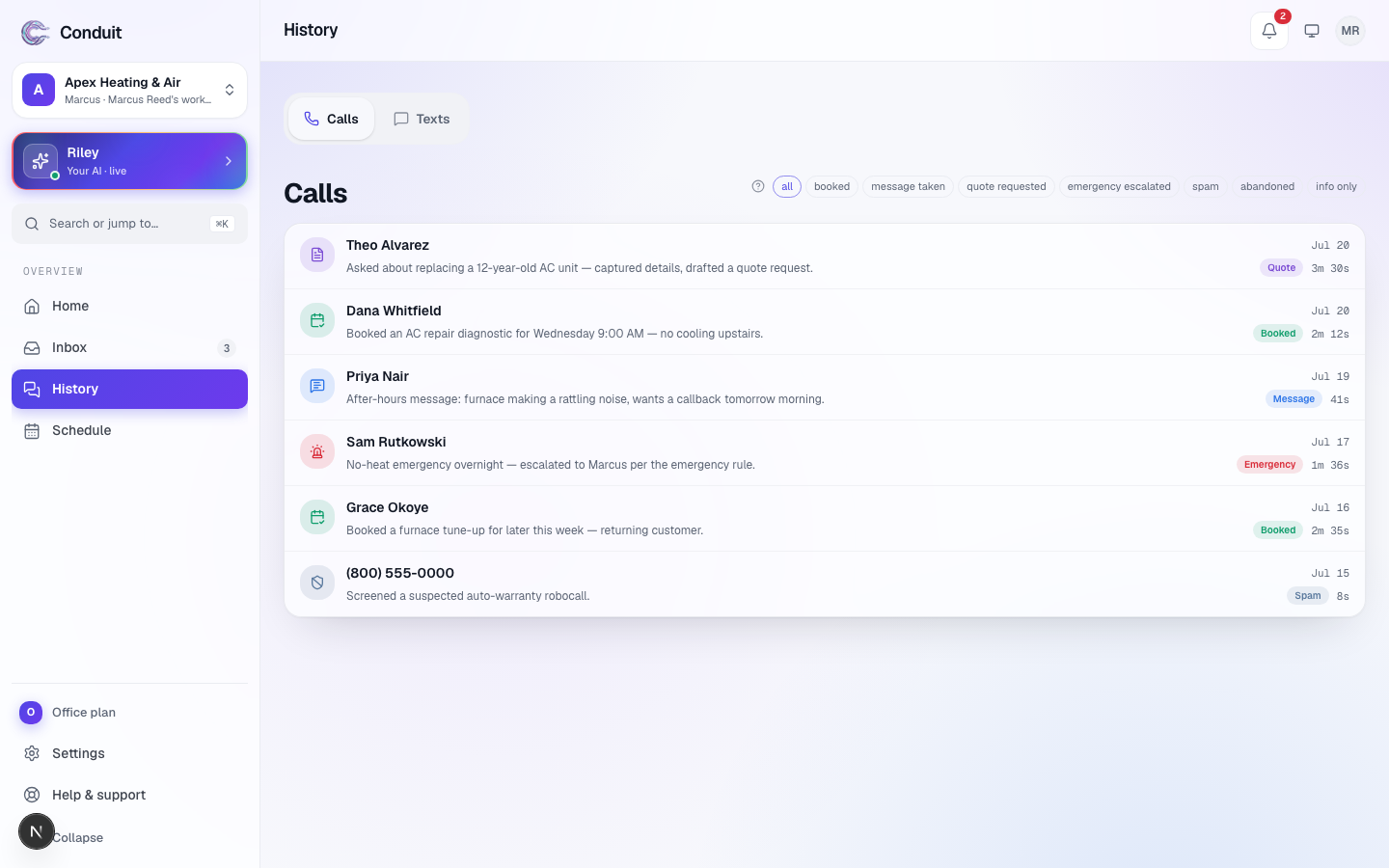
Open Calls from the menu. The list on the left groups calls by day; each row is one call: who it was, when, a one-line summary, and — most usefully — a tag for how it ended. Click one and it opens on the right.
- Open any call ① to see who it was (their number and how many times they've called), play the recording, and read the conversation — your assistant's side beside its orb, the caller's on the right. What your assistant did (it carries its name) lists what came of it: made a booking, took a message, noted a price question for you. Under each answer it gave, Why this answer? shows where it came from.
- Filter by outcome ② when you're looking for something specific — All, Booked, Message, Emergency, Spam, each with its count, and the less common ones under More. Every outcome is listed in call outcomes.
- Calls · Texts ③ switches between calls and text conversations.
- On the open call ④, Call back rings the caller from your own phone, the message button opens your texts with them, and the … button holds Email (when they gave an address) and Block this caller.
Reading a call at a glance
You usually don't need to open anything. The tag on each row tells you how the call ended, and the one-line summary tells you what it was about. Scan the list top to bottom and you've caught up on your whole day in under a minute.
Texts, too
Press Texts to see conversations instead of calls — every message your assistant sent or received on your behalf, grouped by customer. Open a thread and switch on I've got this thread to reply as yourself; your assistant stays quiet there until you hand it back.
What's next
The bookings your assistant makes during these calls show up automatically on your Schedule.
Common questions
Are calls recorded?
Yes. Every caller hears a short disclosure at the start, and you can play the recording and read the full transcript from Calls whenever you like.
What do the tags on each call mean?
Each tag is the call's outcome, in words — booked, message, price question, emergency, spam, and so on — so you can scan the whole list without opening every call.
Where do texts show up?
On the same screen — press Texts, beside Calls, under the page title. It works the same way — every back-and-forth with a customer, in one thread.
Related
- Your assistant, at a glanceSee everything your assistant does from one page — its duties, what it knows, how it sounds, this month's allowance — and where to change any of it.
- Your InboxYour assistant's plain-English write-up of everything it handled — calls, voicemails, and your morning briefing — a two-minute morning read.
- Around-the-clock call answeringYour assistant answers your business number — hand it out or forward your line to it — works out what callers need, books or messages, and logs every call.
Stuck? Write to a person.
Email support@conduitapp.ai — a real person reads every message. No ticket bots, no phone tree.